On this page
Before you remove anything: inventory + back up
Removing WordPress is safe only if you know exactly what's on it. Start here:
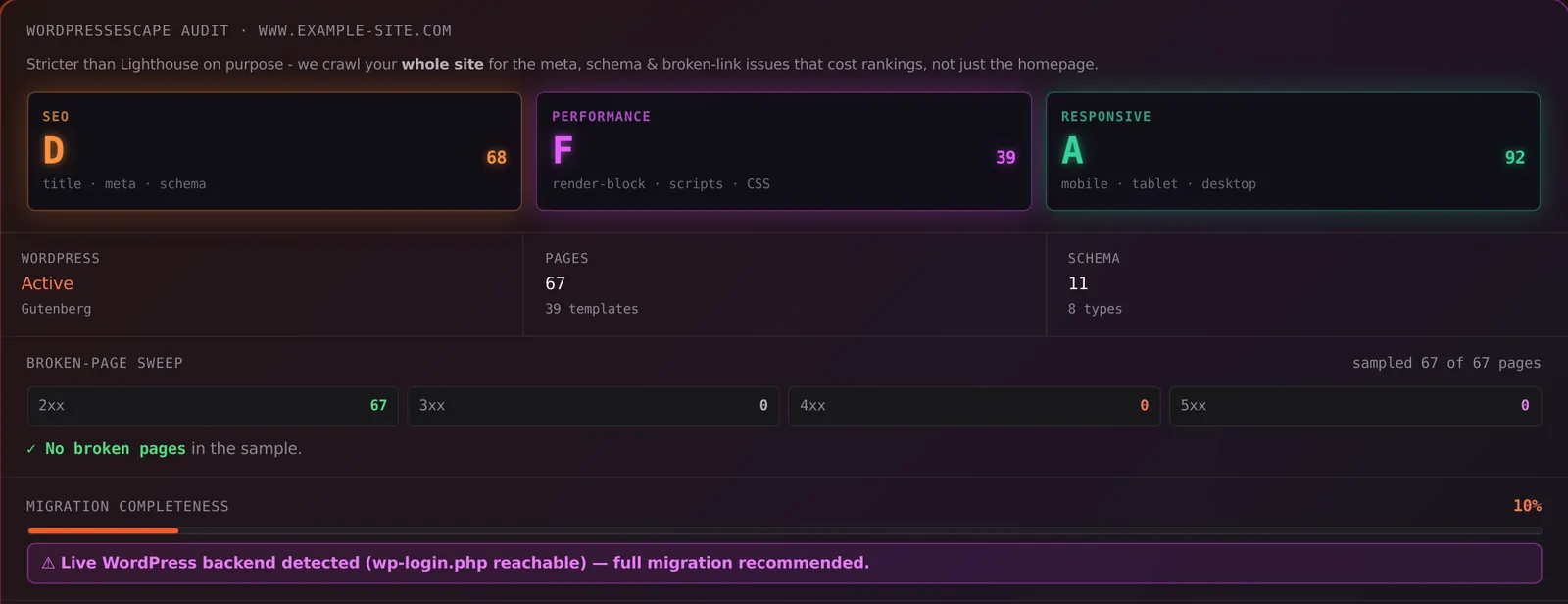
- Crawl the whole site - not just the sitemap. WordPress sitemaps routinely omit pages, so a link-following crawl is the only way to catch every live URL.
- Full backup - database + wp-content, so you can always roll back.
- Export your content and brand - pages, posts, media, plus colors, fonts, and header/footer so the replacement looks like you.
Rebuild your pages as static - at the same URLs
The replacement for a content site is a static site (Hugo is the strongest option): pre-built HTML on a CDN, no database, no plugins. The non-negotiable rule: rebuild every page at the exact same URL. Same paths mean Google sees continuity, not a new site.
- Same URL structure → no ranking disruption
- Titles, meta, canonicals, and schema ported over
- Schema added where WordPress had none → better rich results
Redirect, verify, cut over - then decommission
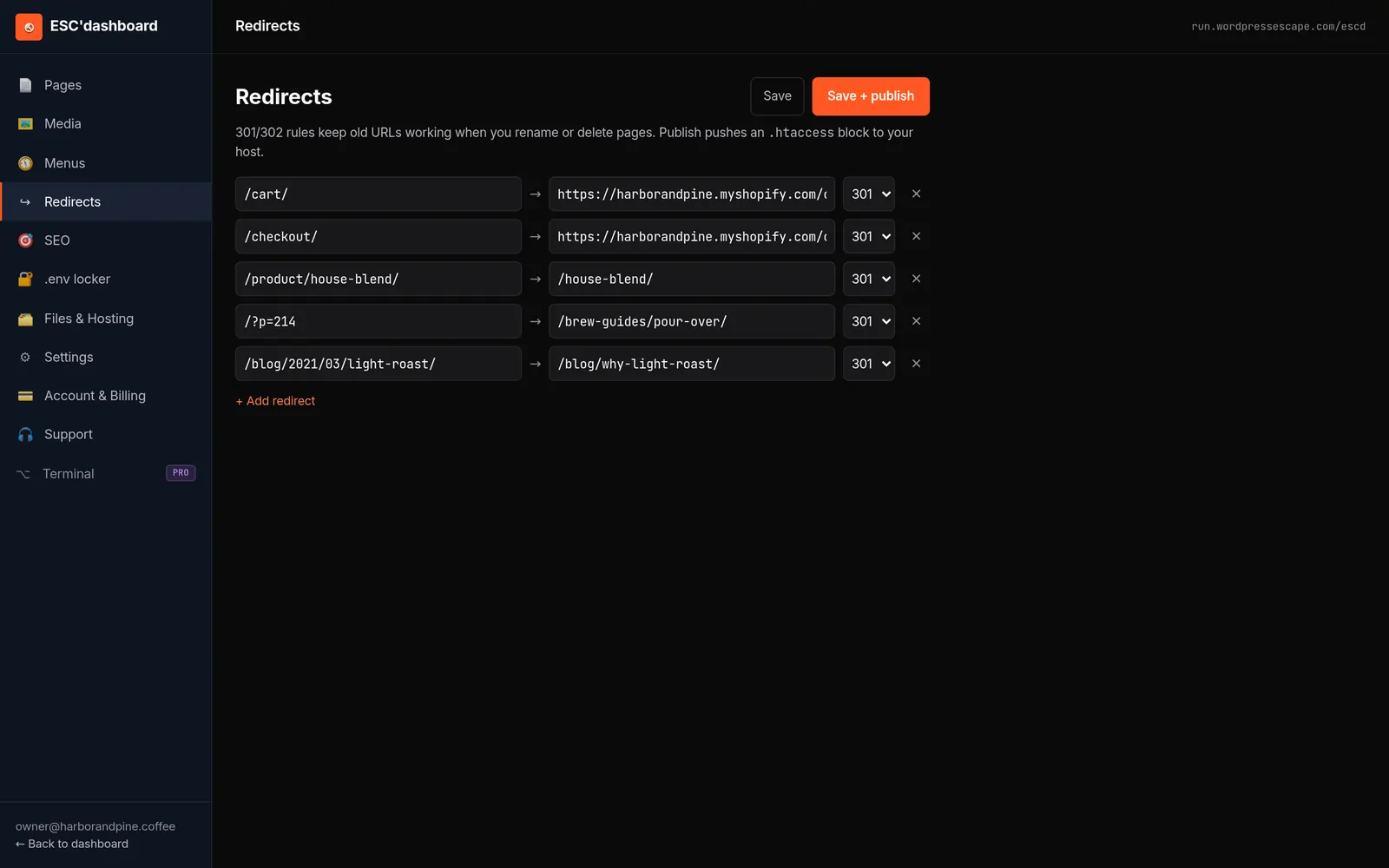
- 301-redirect anything whose URL changes, so link equity flows through.
- Verify before you touch DNS: 0 broken links, matching schema, equal-or-better PageSpeed.
- Cut over DNS to the static host once verification passes.
- Decommission WordPress - once traffic is stable, shut down the install and stop paying for hosting, plugins, and security tools.
That last step is the point: you don't just hide WordPress, you get rid of it entirely.
Frequently asked questions
How do I remove WordPress but keep my website?
Migrate your pages to a static site at the same URLs, redirect anything that moves, verify, then point DNS at the new host and shut down WordPress. Your website stays live and gets faster.
Will removing WordPress hurt my SEO?
Only if you break URLs or drop signals. Preserve URLs, port your schema and metadata, and 301-redirect changes, and rankings hold - usually they improve because the site is faster.
Can I remove WordPress myself?
Yes, but it's tedious and easy to get wrong. Missing one redirect can cost rankings. A done-for-you migration handles the crawl, rebuild, redirects, and verification for you.
Not sure what you'd be migrating? Find out free
The fastest way to know exactly what your migration involves is to let us scan your real site. Free, 60 seconds, no login. We'll show your actual speed score, the SEO gaps we'd fix, your true page count, and which pages are trickiest to move.
Scan my site free