On this page
- Why a Bolt.new Prototype Isn’t a Production Website
- How Bolt.new Works Under the Hood (And Why It Matters for Migration)
- Step 1: Audit Your Bolt.new Site Before You Migrate
- Step 2: Export Bolt Code and Set Up a Local Static Build
- Step 3: Design a URL, Redirect, and Canonical Strategy
- Step 4: Add Real SEO Scaffolding: Sitemap, Schema, and Meta Tags
- Step 5: Deploy to Static Hosting You Own (Cloudflare and Beyond)
- Why WordPress Isn’t the Upgrade You Think It Is
- Bolt.new vs Static Hugo on Cloudflare: Tradeoffs and Outcomes
- Common Migration Pitfalls (and How to Avoid Them)
- Frequently asked questions
Why a Bolt.new Prototype Isn’t a Production Website
Bolt.new (StackBlitz Bolt) lets you launch a working web app or site in seconds. It’s fantastic for prototypes, code examples, and interactive demos. But the same qualities that make Bolt so convenient also limit it as a long-term home for a production website: you’re operating inside someone else’s platform, on someone else’s hosting and URL structure, and under someone else’s constraints.
Most Bolt projects live at a non-branded URL, are tied to your StackBlitz account, and don’t ship with real-world SEO infrastructure out of the box. There’s usually no production-ready sitemap, no structured data, no canonical URL strategy, and no redirect plan when you change or remove pages. For a prototype, this is fine. For a site you expect to rank, convert, and become part of your brand, it’s a liability.
There’s also the question of control. If your Bolt instance goes down, if the platform changes its terms or throttles legacy projects, or if you need functionality Bolt wasn’t designed to support (custom TLS rules, fine-grained caching, logs), you’re stuck. You can’t just SSH into a server or tweak your own edge configuration. You’re bound by what Bolt exposes.
The right upgrade path isn’t “move the prototype into a CMS and hope for the best.” It’s to treat your Bolt project as a codebase. You want to extract the app, define a static build output, and deploy that static output to an environment you own and control - while adding full SEO scaffolding, clean URLs, sitemaps, schema, and a redirect strategy. That’s where static hosting on modern edge platforms, and services like Wordpress Escape, come in as the "production" side of a Bolt prototype.
- Prototype: Fast, disposable, limited SEO and ownership.
- Production: Durable, controlled, with SEO, redirects, and performance guarantees.
- Migration goal: Turn Bolt code into static output you fully own, without losing anything important.
How Bolt.new Works Under the Hood (And Why It Matters for Migration)
To migrate a Bolt.new site effectively, you need to understand what Bolt is actually doing. Bolt runs your code in a browser-based environment powered by StackBlitz’s WebContainers. You get a live filesystem, dev server, and hot reloads all inside the browser. This means the codebase you see in Bolt is a real project - React, Vue, Next, plain HTML/JS, or something similar - served by a development server.
From a migration standpoint, the key is this: Bolt isn’t a black box. It’s a repository of files with a runnable app. Your goal is to pull those files out, run a build that produces static assets (HTML, CSS, JS, images), and deploy those assets to your own hosting. If your Bolt project is already using a static site generator or framework with static export (Next.js static export, Astro, Hugo, etc.), you’re ahead. If it’s a single-page app without server-rendered routes, you’ll need to think about crawlability and HTML output.
Bolt usually stores your project either directly in the browser or synced with a Git repository. If you created your project from a GitHub repo or have connected version control, you can simply clone that repo locally to start the migration. If your project only lives in the browser, you’ll need to download the project ZIP from Bolt or export it to Git. Once it’s out of Bolt, it’s just code: your bundler, your package.json, your build scripts.
This is also where you decide the future architecture. Wordpress Escape, for example, uses Hugo as the static generator underneath and deploys to Cloudflare’s edge. You can translate a Bolt site into a Hugo project (especially if it’s mostly pages and templates), or keep your existing stack if it has a static build. The important part is that Bolt’s dev environment has to give way to a reproducible build pipeline you control.
- Code export: Download or clone the Bolt project code.
- Build pipeline: Configure a static build (e.g., npm run build) that emits HTML and assets.
- Hosting target: Decide where the static output will live: Cloudflare, Netlify, S3, or a service like Wordpress Escape.
Step 1: Audit Your Bolt.new Site Before You Migrate
Before you move anything off Bolt, take an honest inventory of what you’ve actually built. Most Bolt prototypes grow organically: a homepage, a few routes, maybe an API call or two, and some interactive components. To turn this into a production-ready static site, you need to know exactly which pages exist, how they’re linked, and what’s powering them.
Start by listing every route and view. Navigate through your Bolt app and write down the URLs that matter: the homepage, core landing pages, blog posts or docs, any signup or pricing pages, and any special routes (like /dashboard) that won’t be public. If you’re using a router (React Router, Vue Router), inspect the route configuration to confirm the list. Your goal is to produce a definitive URL map that you can preserve post-migration.
Next, identify dynamic behaviors. Ask yourself: which parts of this site are driven by client-side JavaScript fetching data at runtime, and which parts can be rendered into static HTML? A static migration works best when the core content of each page can be baked into HTML at build time. If your Bolt prototype is a purely client-side app that fetches content from an API, consider pre-rendering those responses during the build or using a static site generator that supports data fetching at build time.
Finally, assess the design and brand elements. Note your color scheme, typography, logo usage, spacing, and component library. These are the elements you want to preserve when you rebuild. Wordpress Escape, for instance, reconstructs the front end with Hugo templates that mirror the existing design, so you keep the look and feel while changing the underlying tech. Doing this pre-migration audit ensures nothing important gets lost when you move away from Bolt.
- Route inventory: List all URLs that matter for users and SEO.
- Dynamic vs static: Mark which pages can be fully rendered as HTML.
- Brand elements: Document fonts, colors, logos, and layout patterns to preserve.
Step 2: Export Bolt Code and Set Up a Local Static Build
Once you know what you’re migrating, the next step is to get the code out of Bolt.new and into your own environment. If your Bolt project is linked to GitHub, clone the repository locally using your normal Git workflow. If it isn’t, use Bolt’s project download option to export a ZIP of the filesystem, then initialize Git on your machine. You want a local copy you can rebuild and refactor without relying on Bolt’s browser runtime.
With the code local, look at the build scripts in your package.json or project config. Most modern setups will have commands like "build", "export", or "generate". Run these locally and inspect the output directory - commonly /dist, /build, or /public. The goal is a static artifact: HTML files for each route you care about, plus CSS, JavaScript bundles, and assets. If you only see a single index.html and a big JS bundle, your app might be a single-page app without static exports. In that case, consider introducing server-side rendering or a static site generator rather than pushing the SPA as-is.
If you’re migrating into a Hugo-based pipeline (as Wordpress Escape does), you’ll translate your Bolt components into Hugo templates and partials. That often means moving content into Markdown files, layouts into Hugo templates, and shared UI into partials. The advantage of Hugo is that it’s designed for static output: each page becomes a URL with a real HTML file. Hugo can generate hundreds of thousands of pages at build time, which is how we’ve migrated sites with 528,854 pages without losing URLs or rankings.
Before you move to hosting, verify that your local build matches your expectations. Spin up a simple static server (for example, using a tool like serve or a quick Python HTTP server) and click through all pages. Check that internal links work, forms post to the correct endpoints, and there are no client-side errors in the console. Once the static build behaves like your Bolt site, you’re ready to deploy.
- Clone or download: Get the Bolt project code onto your local machine.
- Run the build: Execute the static build command and inspect the output directory.
- Template translation: Optionally map your Bolt components into Hugo or another static generator for more control.
Step 3: Design a URL, Redirect, and Canonical Strategy
A prototype can get away with whatever URL structure Bolt happens to provide. A production site can’t. As you migrate, you should treat your URL scheme as a long-term contract with both users and search engines. Clean, consistent URLs are one of the simplest and most powerful SEO improvements you can make, and they’re harder to change later than they are to design now.
Start by defining your canonical domain and URL shape. If your Bolt prototype lived at something like bolt.new/your-project, decide whether you’re moving to www.yourbrand.com or a dedicated subdomain such as app.yourbrand.com. Then define patterns for core content types: for example, /blog/post-slug/, /docs/topic-slug/, /pricing/, and /about/. Avoid query-string-dependent URLs and random IDs for pages that should be evergreen. Users and Google both prefer readable paths.
If your Bolt URLs have already been shared, indexed, or bookmarked, plan redirects. This is where a production-ready platform matters: you’ll need the ability to configure 301 redirects from old Bolt URLs to new static URLs. On Cloudflare and similar edge platforms, you can define redirect rules that send requests from the old paths to the new ones permanently. With Wordpress Escape, every existing WordPress URL becomes a static Hugo URL with redirects handled at the edge; you can apply similar discipline when moving off Bolt.
Canonical tags are the final piece. For any page that can be reached through more than one URL (for example, with and without trailing slash, or both /blog and /blog/), define a single canonical URL and emit a link rel="canonical" tag pointing to it. This tells search engines which version to treat as authoritative and avoids duplicate content issues. Designing this upfront, before you push your static site live, prevents painful relabeling later on.
- Canonical domain: Choose www.yourbrand.com or a stable subdomain as the primary home.
- Clean patterns: Define readable URL structures for each content type.
- Redirect rules: Map any old or shared Bolt URLs to your new canonical paths with 301s.
Step 4: Add Real SEO Scaffolding: Sitemap, Schema, and Meta Tags
One of the biggest differences between a Bolt prototype and a production static site is how search engines see it. Bolt doesn’t automatically generate XML sitemaps, structured data, or carefully tuned meta tags. When you migrate, you have the chance to add these elements systematically and gain an immediate SEO advantage - without changing your content.
Begin with a XML sitemap. This is a machine-readable list of your site’s pages, which search engines use as a hint for crawling. For a small site, you can handcraft it, but for anything beyond a dozen URLs, automate it. Static generators like Hugo can emit sitemaps automatically based on your content files. The sitemap should include canonical URLs for your core pages and be linked in your robots.txt file. When deployed, you’ll submit the sitemap to Google Search Console and other webmaster tools.
Next, implement structured data (schema). For a typical marketing or documentation site, you’ll focus on types like Organization, Website, Article, and FAQPage. These are snippets of JSON-LD embedded in your HTML that describe the meaning of your content. Schema helps with rich results (like FAQ accordions in search) and gives search engines clearer context about your brand. Because your site is static, you can bake schema in at build time, using templates to ensure consistency.
Don’t neglect meta tags and on-page SEO basics. Each page should have a unique, descriptive <title>, a clear meta description, hreflang tags if you serve multiple languages, and heading hierarchy that matches the content structure. Static templates make this easier than ad-hoc editing. With Wordpress Escape, for instance, the ESC’dashboard gives you a familiar WordPress-style editing experience to manage titles, descriptions, and content without reintroducing a dynamic CMS underneath. You get both the performance of a static site and the convenience of a structured SEO workflow.
- Sitemap: Generate and publish an XML sitemap listing canonical URLs.
- Schema: Add JSON-LD for Organization, Website, Article, and other relevant types.
- Meta tags: Ensure unique titles, meta descriptions, and clean heading structures for every page.
Step 5: Deploy to Static Hosting You Own (Cloudflare and Beyond)
With a static build and SEO scaffolding in place, you’re ready to leave Bolt.new behind and deploy to infrastructure you control. Today’s static hosting options range from edge networks like Cloudflare to platforms like Netlify, Vercel, and classic object storage with a CDN in front. The key is to choose a host that gives you low latency, predictable costs, and fine-grained control over caching and redirects.
Cloudflare’s edge network is a strong fit for static sites migrated from Bolt. When you deploy static assets to workers or pages backed by Cloudflare’s CDN, your site can achieve time to first byte (TTFB) in the ~30ms range globally and PageSpeed scores in the 94+ range, because the content is served from data centers close to your visitors. In our migrations at Wordpress Escape, we routinely see cumulative layout shift (CLS) drop to zero because the pages no longer rely on slow, third-party rendering.
If you’re comfortable with DevOps, you can wire up CI/CD yourself: push your static build to a Git repository, configure Cloudflare Pages or Workers to deploy on commit, and manage environment variables and redirects via configuration files. If you want a managed experience, a service like Wordpress Escape handles the edge deployment for you, mapping every existing URL to a static Hugo page and verifying there are zero URLs lost in the process - even for massive sites with hundreds of thousands of pages.
Regardless of who manages the hosting layer, make sure you set HTTP caching policies correctly. Cache static assets aggressively, use immutable caching for hashed files, and configure short-lived caches where you need rapid updates. Test your production deployment with tools like Google’s Lighthouse to confirm that your migration from Bolt produced the performance you expect. A properly deployed static site shouldn’t just match Bolt’s responsiveness; it should surpass it and stay fast under real traffic.
- Edge hosting: Deploy static assets to an edge network like Cloudflare for sub-50ms TTFB.
- CI/CD: Automate builds and deployments from your Git repository.
- Caching and performance: Tune caching headers and verify PageSpeed, CLS, and TTFB in production.
Why WordPress Isn’t the Upgrade You Think It Is
When developers outgrow a prototype on Bolt.new, the default instinct is often "let’s move it to WordPress." On paper, WordPress looks like an upgrade: a full CMS, a plugin ecosystem, themes, and a familiar admin UI. In practice, you’re trading one set of constraints for another - and introducing new risks that static hosting doesn’t have.
WordPress’s architecture is fundamentally dynamic. Every page load hits PHP, the database, and a stack of plugins, unless you layer complex caching on top. This makes performance fragile. It’s common for WordPress sites to struggle to maintain PageSpeed scores above 90, especially as plugins accumulate. TTFB can easily exceed 500ms on shared hosting, and even optimized setups often land in the 150-300ms range globally. You can work around this with caching plugins and CDNs, but you’re patching a system that wasn’t designed to be static.
There’s also plugin and security overhead. Every plugin introduces potential vulnerabilities and compatibility issues. Keeping WordPress updated, managing backups, and hardening the install against attacks is a continuous chore. These aren’t imaginary concerns; they’re why so many agencies invest in managed WordPress maintenance. If your goal after Bolt is a simple, fast site that ranks and converts, adding a dynamic CMS layer may not be the most efficient route.
Static approaches avoid these pitfalls. Wordpress Escape takes an even stronger stance by permanently deleting WordPress in every migration. Instead of keeping WordPress as a hidden backend (like some static export tools do), Wordpress Escape reconstructs the site as static Hugo on Cloudflare’s edge, preserves every URL and ranking, and gives you a WordPress-style editor (ESC’dashboard) without WordPress underneath. You retain the editorial workflow of a CMS but remove the runtime overhead. For a site that started as a Bolt prototype, this means your "upgrade" doesn’t involve adding a heavy backend - you go from prototype to static production in one step.
- Dynamic overhead: WordPress depends on PHP and databases for every request.
- Performance risk: Plugins and themes often drag PageSpeed and TTFB down.
- Static alternative: Use static Hugo on the edge with a CMS-like editor instead of adding WordPress.
Bolt.new vs Static Hugo on Cloudflare: Tradeoffs and Outcomes
Comparing Bolt.new to a static Hugo deployment on Cloudflare helps clarify what you gain and what you lose in migration. Bolt is optimized for developer convenience and rapid prototyping. Hugo on the edge is optimized for repeatable builds, performance, and long-term stability. Understanding these tradeoffs makes the migration decision less about tools and more about outcomes.
On Bolt, you get instant startup, a browser-based dev environment, and zero setup. Your site is live quickly, but you’re bound by the platform’s hosting model and URL space. SEO features are manual, and scaling beyond a simple prototype tends to involve workarounds. On Hugo with Cloudflare, initial setup takes more effort, but every subsequent build is predictable. Hugo can generate tens of thousands of pages in seconds, and Cloudflare serves them from the edge. In our experience, that combination makes it possible to migrate enormous sites - our own 528,854-page WordPress site, for example - while keeping zero URLs lost and maintaining rankings.
From a performance perspective, a well-tuned static Hugo site typically achieves PageSpeed scores around 94+ and TTFB near 30ms for global audiences, with cumulative layout shift effectively at 0. These are numbers that are difficult to reach consistently with a dynamic CMS or a prototype-oriented platform. Once deployed, static sites have fewer moving parts: no PHP runtime, no database outages, and no plugin conflicts. Your main ongoing expenses are hosting and bandwidth, not maintenance overhead.
The main tradeoff is where you do your editing and iteration. Bolt makes editing code-friendly but not content-friendly. Hugo makes builds deterministic but expects you to manage content as files unless you add an editor layer. Wordpress Escape’s ESC’dashboard bridges that gap by providing a WordPress-style editor on top of the static Hugo site. For teams, this means developers get the static architecture they want, while content editors get the familiarity of a CMS without the baggage of WordPress or the limitations of Bolt.
- Bolt strengths: Rapid prototyping, browser dev, instant demos.
- Static Hugo strengths: Edge performance, massive scale, predictable builds.
- Outcome focus: Choose the stack that matches long-term SEO, performance, and workflow needs - not just initial convenience.
Common Migration Pitfalls (and How to Avoid Them)
Migrating a Bolt.new site to static hosting isn’t hard, but it’s easy to miss details that matter in production. By anticipating common pitfalls, you can avoid chasing bugs after launch and protect both SEO and user experience. Most issues fall into a few categories: broken links, lost metadata, neglected redirects, and overlooked performance regressions.
Broken internal links are the most obvious. Bolt routes often rely on client-side navigation, and it’s easy to overlook relative path differences when you move to static hosting. During migration, audit your links and ensure they point to canonical URLs, using absolute paths where appropriate. A pre-launch link checker can catch missing pages or typos that would otherwise generate 404s. If you’re working with Hugo or another generator, verify that the output directory structure matches your expectations.
Metadata loss is subtler but just as important. If your Bolt prototype used inline titles and descriptions or dynamic SEO libraries, you might lose those when you change frameworks. Preserve page-specific metadata intentionally during the rebuild. For each route you identified earlier, carry over or rewrite the title tag, meta description, and any open graph tags that matter for social sharing. Services like Wordpress Escape bake this step into the migration process so that every URL retains its SEO signals when the underlying tech changes.
Redirects and performance are the final hazard zone. It’s common to assume that, because the new static site is fast locally, it will be fast everywhere. In reality, you need proper hosting and caching to maintain performance under load. Similarly, if you don’t set 301 redirects from any old URLs to new ones, you’re asking search engines and users to rediscover your content from scratch. Use edge redirect rules to map old paths to new ones with minimal latency, and confirm post-launch that every important URL returns a 200 or a 301 - not a 404. Monitoring tools and Search Console can help you spot issues early.
- Broken links: Use link checking before launch to catch missing or misrouted pages.
- Metadata gaps: Preserve or improve titles, descriptions, and open graph tags during migration.
- Redirect and performance: Configure 301s and verify global performance on the new static host.
Frequently asked questions
Can I migrate a Bolt.new site without rewriting it from scratch?
Yes. In most cases, you can export the code from Bolt.new, set up a local build that produces static assets, and deploy those assets to your own hosting. You may need to adjust routing and SEO, but you don’t usually have to rewrite the entire site unless you’re changing frameworks or information architecture.
Do I need WordPress to turn my Bolt prototype into a production site?
No, you don’t need WordPress, and for many Bolt prototypes it’s not the best upgrade. A static site generator plus edge hosting can give you better performance, lower maintenance, and stronger SEO, especially if you add a CMS-like editor layer instead of a full dynamic WordPress install.
Will I lose my existing URLs and rankings when I move off Bolt.new?
You don’t have to. If you define a clear URL mapping and set 301 redirects from old paths to new canonical URLs, you can preserve both traffic and rankings. Services like Wordpress Escape specialize in migrations that retain every URL and ranking even when the underlying platform changes completely.
How do I handle dynamic content when migrating a Bolt site to static hosting?
You can pre-render dynamic content at build time by fetching data in your static generator or build scripts, then embedding the results into HTML. For truly real-time features, you can keep small API endpoints or serverless functions while serving the main pages as static files. The aim is to minimize what has to run dynamically on every request.
What performance improvements should I expect after moving to static hosting?
Compared to a prototype or dynamic CMS, a properly deployed static site on an edge network can achieve PageSpeed scores above 90, very low TTFB (often around tens of milliseconds), and minimal layout shift. These improvements come from serving prebuilt HTML and assets from locations close to users rather than generating pages on the fly.
Is it possible to keep a WordPress-style editor without using WordPress itself?
Yes. Tools like Wordpress Escape provide a WordPress-style editor (ESC’dashboard) on top of a static Hugo site, so editors manage content in a familiar interface while the live site stays static. This lets you avoid the performance and security overhead of WordPress while preserving a comfortable workflow for non-technical users.
Do I need a developer to migrate my Bolt.new site to static hosting?
You’ll need technical skills to export the code, configure a build pipeline, and deploy to static hosting if you do it yourself. If that’s not your expertise, a done-for-you service like Wordpress Escape can handle the migration, URL preservation, SEO scaffolding, and hosting setup so you can focus on content and strategy instead of infrastructure.
See your own numbers first
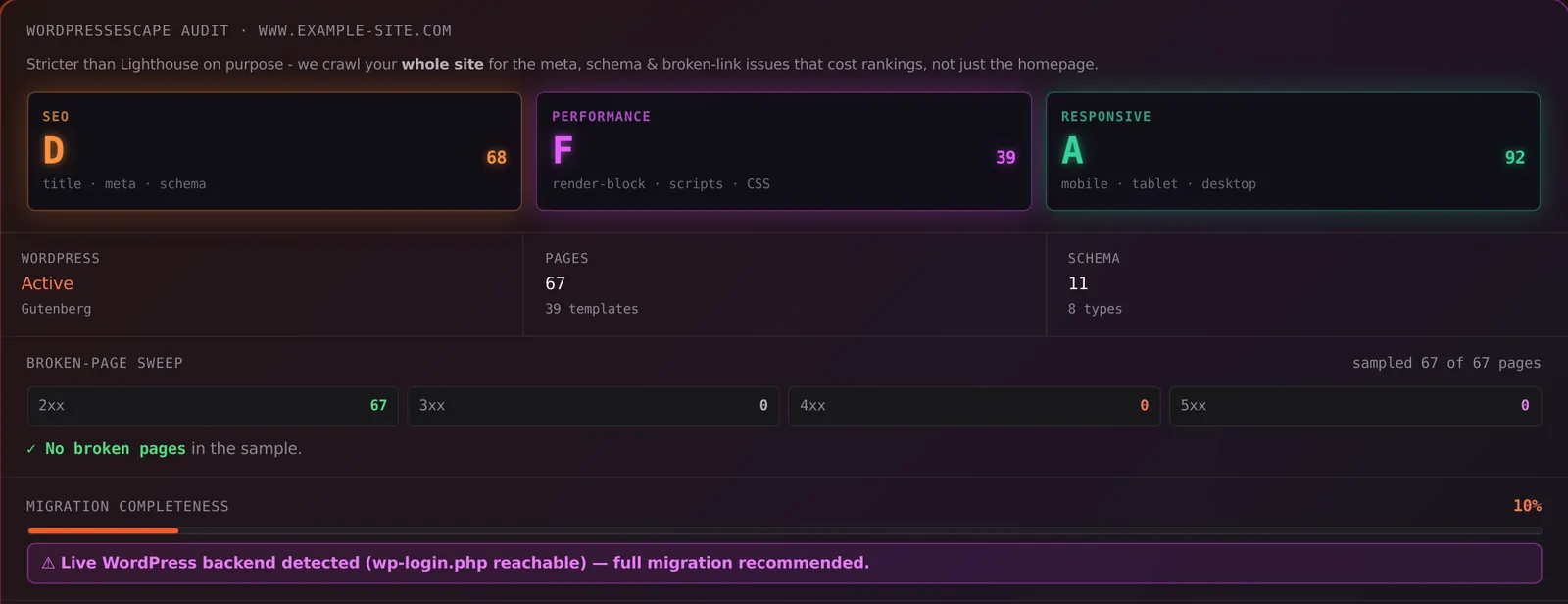
Every site is different. Run the free 60-second audit on your site - real SEO + speed grades, no login - then decide.
Scan my site free