
On this page
- Why Beaver Builder Sites Slow Down (Even When Built Cleanly)
- Beaver Builder Lock-In: Rows, Modules, and Shortcodes
- Static Export vs True Static Migration (Why WordPress Must Go)
- Preparing Your Beaver Builder Site for Static Migration
- DIY Static Export: Step-by-Step and Common Pitfalls
- Professional Rebuild: How Wordpress Escape Migrates Beaver Builder to Hugo
- Editing After Migration: Life Without Beaver Builder
- Preserving SEO and URLs When Migrating Beaver Builder Sites
- Cost, Tradeoffs, and When Static Isn’t the Right Move
- Frequently asked questions
Why Beaver Builder Sites Slow Down (Even When Built Cleanly)
Beaver Builder has a reputation for being cleaner and more lightweight than many other WordPress page builders, and that reputation is deserved. It avoids some of the shortcode bloat and layout chaos you see with tools like WPBakery or older versions of Divi. Still, at the end of the day, a Beaver Builder site is a WordPress site running PHP on a server, layered with plugins, themes, and database calls. That full stack has to fire on every page view.
When you look under the hood of a typical Beaver Builder site, there are several performance bottlenecks. Every request triggers WordPress’s core bootstrap, loads the active theme, executes Beaver Builder’s layout logic, and then pulls in any plugins that hook into the page output. Add page caching, minification, and a content delivery network (CDN) on top, and you’re adding complexity just to get back some of the performance you lost. Even well-optimized Beaver Builder installations often end up with Time To First Byte (TTFB) in the 300-800ms range and Core Web Vitals scores that fluctuate under real-world traffic.
The builder itself also adds asset overhead. Layouts rely on CSS and JavaScript that may be globally enqueued, whether or not a particular page uses a specific module. You may see large combined files for Beaver Builder styles, icon sets, and interaction scripts. If you use third-party modules or templates, those come with their own asset payload. On mobile connections, those extra kilobytes often translate into longer First Contentful Paint (FCP) and potential layout shifts.
Static approaches, by contrast, pre-render HTML once and serve it directly from edge locations. There’s no PHP execution and no database hits per request. At Wordpress Escape, for example, sites rebuilt as static Hugo on Cloudflare’s edge often see TTFB around 30ms and PageSpeed scores in the mid-90s without aggressive caching hacks. That difference is structural: you’re removing the runtime engine rather than trying to tune it. Beaver Builder’s cleanliness helps when converting, but it doesn’t eliminate the cost of WordPress and PHP on every request.
Understanding this baseline is important before you migrate. If your Beaver Builder site is currently scoring in the 60-80 range on mobile PageSpeed, with occasional CLS issues and inconsistent load times, a static rebuild can realistically push you into the 90+ territory. The tradeoff is that you can’t just click “export to static” and keep the entire WordPress stack in the background. You have to decide how much you want to simplify and whether you’re willing to remove WordPress entirely after the migration.
Beaver Builder Lock-In: Rows, Modules, and Shortcodes
Beaver Builder is less "locked-in" than some visual builders, but your layouts and content still live inside its system of rows, columns, and modules. Under the surface, Beaver Builder stores your design as JSON metadata and sometimes shortcodes tied to its plugin and theme framework. That means the visual structure you see in the editor depends on Beaver Builder’s PHP, hooks, and front-end CSS/JS to render correctly. If you remove Beaver Builder, the raw HTML output often changes or collapses entirely.
At the layout level, rows and columns dictate how content is positioned at different breakpoints. Beaver Builder’s responsive grid controls spacing, padding, and stacking behavior. Modules like headings, buttons, images, sliders, and forms then sit inside those rows. Many modules output fairly clean HTML, but some rely on dynamic scripts for animations, carousels, or lazy loading. The more advanced the module, the more likely it is tied to Beaver Builder’s scripts and configuration. That coupling is what people mean when they talk about "builder lock-in".
Shortcodes and template parts deepen the lock-in. While Beaver Builder avoids shortcode chaos in many cases, it still uses its own rendering logic for certain components and saved templates. Global rows, reusable modules, and theme hooks depend on the plugin being active. Deactivate Beaver Builder on a live site and your carefully arranged landing pages may collapse into plain text or lose styling. That is a serious risk if you are considering a static migration that also removes WordPress entirely.
From an SEO perspective, the lock-in affects more than design. Internal links, headings hierarchy, and schema markup may be embedded inside Beaver Builder modules. If those modules disappear or render differently when the plugin is removed, search engines see changed content even if the URL stays the same. That can cause ranking turbulence and force reindexing. A careful migration must treat Beaver Builder JSON and module output as the source of truth, then convert that into static, builder-free HTML with equivalent structure.
The goal when migrating is not to keep Beaver Builder running in the background forever, but to extract the clean HTML and CSS that represent your design and then reproduce it in a static framework like Hugo. That way, you preserve rows, columns, and modules as final HTML sections without needing the plugin or WordPress. Services like Wordpress Escape specialize in mapping those Beaver Builder layouts into static Hugo templates, allowing you to delete WordPress completely without losing the look and feel you’ve invested in.
Static Export vs True Static Migration (Why WordPress Must Go)
When Beaver Builder users hear "static site," they often think of export plugins like Simply Static, WP2Static, or manually saving HTML files from the browser. These tools typically crawl your existing WordPress site, download the rendered HTML, and bundle assets so you can host them elsewhere. The catch is that most of these approaches assume WordPress will continue running someplace, either as the origin that generates those files or as a hidden backend for form handling, search, and content management. WordPress hasn’t really gone away; it’s just moved out of view.
That distinction matters for performance, security, and maintenance. If WordPress remains active as a hidden backend, you still have to patch core, update plugins, monitor PHP versions, and lock down the admin area. Any attack surface that existed before still exists; it’s just less visible. On the performance side, origin responses for generated static files can still be slow if they’re pulled on demand. You end up relying heavily on CDN caching and expire headers to hide the inconsistency of the backend.
A true static migration goes further: WordPress is fully decommissioned after the migration, and the site is rebuilt in a static framework like Hugo or Eleventy. In that model, the origin no longer runs PHP and no longer has a WordPress database. All content is pre-rendered into flat HTML and JSON, and the hosting platform (such as Cloudflare’s edge) serves those files directly. There is no admin dashboard in the WordPress sense, no plugins, and no runtime code that can be exploited. You still edit your site, but through a different content layer.
This is where services like Wordpress Escape differentiate themselves from DIY export tools. Instead of treating your Beaver Builder pages as something to crawl and freeze, Wordpress Escape extracts the design, rebuilds it as Hugo templates, and deploys them on Cloudflare’s global edge network. The WordPress database and PHP runtime are then removed entirely. For one large internal project, Wordpress Escape migrated a 528,854-page site with zero URLs lost, maintaining rankings while delivering PageSpeed scores around 94+, TTFB near 30ms, and CLS at 0. Those numbers are achievable because the runtime complexity was removed, not just cached away.
For Beaver Builder site owners, the practical decision is this: do you want a one-time export that leaves WordPress running behind the scenes, or do you want to eliminate WordPress altogether? If you choose the first option, you keep your familiar admin but also keep the update burden and risk. If you choose the second, you gain permanent performance and security benefits but must accept a new editing workflow. A thoughtful static migration preserves your URLs, redirects, and on-page SEO so the front-end experience remains identical while the backend disappears.
Preparing Your Beaver Builder Site for Static Migration
Before you migrate a Beaver Builder site to a static architecture, it pays to clean house. A disciplined preparation phase reduces surprises, lowers the chance of broken layouts, and makes it easier to map your existing design into static templates. Think of this stage as getting your WordPress site into its best possible shape right before you freeze and rebuild it somewhere else.
Start by auditing your plugin stack. List every active plugin and ask whether it directly affects front-end rendering, data collection, or background tasks. Visual add-ons for Beaver Builder, form plugins, SEO tools, and performance layers like cache plugins all have implications for static migration. Remove anything that’s no longer used or that duplicates features you don’t need. The fewer moving parts, the cleaner the HTML output and the easier it is to reconstruct your site in Hugo or another static generator.
Next, review your Beaver Builder layouts themselves. Identify key page types: homepage, landing pages, blog posts, product pages, and contact pages. Look for custom modules, global rows, or theme hooks that differ from standard patterns. It helps to document these structures with screenshots and notes so you know which elements must be preserved. Pay special attention to advanced modules such as sliders, tabs, accordions, and animated elements. In a static rebuild, those interactions will typically be reproduced using vanilla JavaScript or lightweight libraries, but you need to know where they are.
Then, perform an SEO and URL audit. Export a list of all indexed URLs using your SEO plugin, Google Search Console, or a crawl tool. Verify canonical tags, meta titles, descriptions, and structured data on key pages. Make sure your internal links use consistent patterns (for example, trailing slash rules and lowercase URLs). Any quirks you ignore now can become harder to fix once the site is static. A service like Wordpress Escape will usually insist on a full URL and redirect map to guarantee that no URL is lost and that search engines see exactly the same endpoints after migration.
Finally, capture performance baselines. Run Lighthouse or PageSpeed Insights on core templates and record your current scores, TTFB, CLS, FCP, and LCP metrics. This baseline tells you what you’re gaining with static, and it helps you confirm that the rebuilt version is truly faster. If your Beaver Builder site currently requires aggressive cache plugins and CSS/JS concatenation to score in the 70-80 range, you’ll have tangible evidence of improvement when a static Hugo build on Cloudflare’s edge starts hitting 94+ scores with minimal tuning.
DIY Static Export: Step-by-Step and Common Pitfalls
For technically inclined Beaver Builder users, DIY static export is tempting. On paper, the process looks straightforward: install a static export plugin, configure it, generate a bundle of HTML files, and push them to a CDN or static host. In practice, the details matter. Overlooking forms, dynamic content, or URL normalization can result in broken pages, lost tracking, and confusing maintenance. If you go the DIY route, you need a clear, concrete plan.
A typical workflow starts with choosing an export tool, such as Simply Static or a similar plugin. You install it on your Beaver Builder site and configure the crawl scope: which URLs to include, how to handle query parameters, and what to do with dynamic paths like archives or search results. You run a test export and inspect the generated HTML and asset directories. At this stage, you are looking for missing images, broken CSS links, and unresolved script references. Beaver Builder’s layout assets must be fully captured; otherwise, your exported version will look different from the live site.
Next, you deploy the static bundle to your hosting platform. This might be a static bucket on a cloud provider, a Git-based static host, or a CDN like Cloudflare. You set up DNS so your domain points to the new static origin, and you configure HTTPS. Here is where URL mismatches often appear. If your original WordPress install used http:// or a different subdomain, hardcoded links inside Beaver Builder modules may still point to the old origin. You need to perform search-and-replace on the exported files or adjust your export settings to rewrite those URLs during the crawl.
Pitfalls appear quickly when you consider interactivity and ongoing editing. Contact forms that relied on PHP processing will stop working unless you rewire them to a static-friendly form provider such as a serverless function or third-party form service. Search boxes that queried the WordPress database will no longer return results. Any login forms, gated content, or dynamic widgets become non-functional without a backend. You must either remove those elements or provide static alternatives. Many DIY migrations skip this step, leaving broken features on the live site.
Maintenance is the other major issue. With a pure export, every content change requires generating a new static bundle and redeploying it. If you keep WordPress running as an origin, you maintain two systems: the live static copy and the underlying WordPress site. You still patch WordPress, apply Beaver Builder updates, and run backups. The surface looks static, but much of the operational burden remains. This is the main reason some site owners eventually look beyond DIY export toward full migrations like Wordpress Escape, which rebuilds the site in Hugo and then shuts down WordPress entirely, while handing back a WordPress-style editor (ESC’dashboard) for ongoing changes without the PHP stack.
Professional Rebuild: How Wordpress Escape Migrates Beaver Builder to Hugo
If you want the benefits of a static site without living in development tools, a professional rebuild can bridge the gap. Rather than crawling your Beaver Builder site and freezing its output, Wordpress Escape treats your existing site as a design and content blueprint, then reconstructs it in Hugo, a static site generator that compiles content into fast, flat files. WordPress and Beaver Builder are removed at the end of the process, but the design, URLs, and SEO signals remain intact.
The process typically starts with a detailed discovery and mapping phase. Wordpress Escape captures your entire URL universe, including pages, posts, archives, custom post types, and any special landing pages built with Beaver Builder. They mirror your permalink structure in Hugo so each endpoint can be recreated. Simultaneously, they analyze key templates: homepage, content pages, blog index, single posts, category and tag archives, and any custom layouts. These templates become Hugo layouts that reproduce the Beaver Builder look using static HTML and CSS, often with leaner assets than the original.
Next comes content extraction. Instead of scraping rendered HTML, Wordpress Escape pulls content from the WordPress database and Beaver Builder meta. Headings, body text, images, buttons, and module settings are translated into Hugo content files and front matter. This allows content to be managed as Markdown and structured data rather than opaque HTML blobs. Design elements like rows and columns are expressed as reusable Hugo partials. Interactive features such as sliders or tabs are rebuilt with lightweight JavaScript, tuned for performance and Core Web Vitals compliance.
Deployment shifts the site to Cloudflare’s edge network. Hugo builds generate static files that are pushed to Cloudflare, which serves them from data centers close to your visitors. With no PHP runtime and no database calls, TTFB drops dramatically - often toward the 30ms range - and PageSpeed scores stabilise in the 90s without fragile caching tricks. In Wordpress Escape’s own migration of a 528,854-page site, all URLs were preserved and CLS remained at 0, illustrating that scale and stability can coexist when the runtime is removed.
The final step is unique: instead of leaving you with raw Hugo files, Wordpress Escape provides ESC’dashboard, a WordPress-style editing interface that sits on top of the static infrastructure. You edit pages, posts, and settings through this dashboard, and behind the scenes, Hugo rebuilds and redeploys the site. There is no WordPress, no Beaver Builder plugin, and no PHP, but your workflow feels familiar. This approach is designed for site owners who want the long-term simplicity of a static site with the convenience of a CMS-like dashboard.
Editing After Migration: Life Without Beaver Builder
One of the biggest concerns for Beaver Builder users considering static migration is editing. You’re used to dragging rows and modules into place, adjusting padding, and previewing visually. The idea of editing Markdown files in a Git repository can feel like a step backward. The good news is that life after migration does not have to be command-line driven. The key is choosing the right editorial experience that fits your team’s skills and tolerance for change.
In a pure DIY Hugo setup, editing is typically file-based. Authors edit Markdown content, adjust front matter, and commit changes to a repository. Developers tweak layouts and partials using HTML and Go templates. This is powerful and flexible but can be overkill for non-technical marketers. For Beaver Builder users who are comfortable with visual editing but not with code, jumping directly into raw Hugo might create friction and slow down content production.
Wordpress Escape tackles this by adding ESC’dashboard, a browser-based editor that feels similar to a simplified WordPress dashboard. In this environment, you manage pages, posts, menus, and global settings through forms and visual previews. When you hit "save" or "publish," the system generates updated Hugo content and triggers a rebuild and redeploy to Cloudflare’s edge. You never have to touch Git or a terminal. Beaver Builder’s exact drag-and-drop interface is gone, but you retain a structured editing experience with fields, text areas, and basic layout options.
Design changes follow a similar pattern. If you occasionally tweak colors, fonts, or spacing, those controls can be exposed in ESC’dashboard as site-wide settings that adjust the underlying CSS. More complex layout changes may involve a designer or developer updating Hugo templates, but those changes are typically infrequent compared to everyday content edits. In practice, many Beaver Builder site owners find that their visual changes are limited to content and minor styling, making the static workflow manageable.
The tradeoff is clear: you gain a simpler, more predictable runtime at the cost of some visual freedom. You can no longer install a Beaver Builder add-on module on a whim and drop it onto a page; every new component must be implemented in HTML and JavaScript. However, the upside is that you also avoid the performance regressions and compatibility issues that come with adding more plugins. For teams focused on speed, security, and reliability, a streamlined editor layered on top of Hugo often beats the plugin-driven flexibility of WordPress plus Beaver Builder.
Preserving SEO and URLs When Migrating Beaver Builder Sites
For established Beaver Builder sites, SEO and URL preservation are non-negotiable. A static migration that breaks canonical URLs, changes content structure, or drops metadata can undo years of rankings and link equity. The goal is not simply to make the site faster; it is to make it faster while keeping search engines and users unaware that the underlying platform has changed. Achieving that requires careful mapping and verification.
The first step is to freeze your URL structure as a requirement. Whether your site uses /%postname%/ permalinks, custom post type slugs, or category-based URLs, those patterns must be replicated in the static environment. In a Hugo-based rebuild, you configure content types and routing rules to output the same paths. Services like Wordpress Escape treat this as a hard constraint, ensuring that a 528,854-page migration can preserve every URL without relying on mass redirects. If a specific page lives at /resources/beaver-builder-static-migration/, it should live at that path after the migration, too.
Next, you must carry over on-page SEO signals. Title tags, meta descriptions, canonical tags, and Open Graph/Twitter cards need to be rendered identically, or intentionally improved, in the static templates. If you use an SEO plugin today, its data can be exported or read from the WordPress database and translated into Hugo front matter. That way, each page’s SEO configuration becomes part of the static build. Structured data (JSON-LD) should likewise be ported to templates so that article, product, or organization schema continues to appear as before.
Internal linking and navigation requires special care with Beaver Builder modules. Buttons, text links, and CTAs often refer to pages by URL or ID. When rebuilding, those links must remain correct and consistent. A thorough migration includes crawls before and after, checking for broken links and ensuring that breadcrumb trails and menus match. If you have a blog, category and tag index pages should deliver the same lists of posts, even though the data source is now static files rather than the WordPress database.
Finally, verification closes the loop. After the static site goes live, you update your property settings in search console if needed, submit sitemaps, and monitor crawl stats. Ideal migrations show a brief period of increased crawling followed by stable indexing and rankings. Wordpress Escape’s internal projects, including the large 528,854-page migration, demonstrate that it is possible to change the backend completely while keeping rankings intact, provided you preserve URLs and content structure. It’s also a good time to fix lingering SEO issues - such as duplicate titles or thin content - since you’re already touching every page layout.
Cost, Tradeoffs, and When Static Isn’t the Right Move
Static migration offers compelling benefits, but it’s not automatically the right choice for every Beaver Builder site. Understanding the cost, tradeoffs, and limitations helps you decide whether to proceed, and if so, whether to handle it yourself or engage a specialist. The decision depends on your traffic profile, business model, technical resources, and appetite for workflow changes.
On the cost side, DIY static export can be inexpensive in direct expenses but costly in internal time. You may spend days configuring export tools, chasing broken assets, rewiring forms, and adjusting DNS and HTTPS. If you keep WordPress as a hidden backend, you also continue to bear the cost of hosting, backups, updates, and plugin renewals. Professional rebuilds like Wordpress Escape are more expensive up front, reflecting the depth of the work: URL mapping, Hugo template development, design reconstruction, and Cloudflare deployment. However, the long-term savings in maintenance and hosting can be significant, especially for large sites.
The tradeoffs revolve around flexibility and interactivity. Static sites are excellent for content-heavy properties, marketing sites, documentation, and blogs. They serve pre-rendered HTML efficiently and predictably. However, if your Beaver Builder site powers complex logged-in experiences, real-time dashboards, or heavy personalization, a full static migration may be inappropriate. In those cases, a hybrid architecture that leaves application sections dynamic while moving marketing pages to static can be more sensible. The key is to separate what truly requires a backend from what does not.
Workflow changes are another consideration. If your team thrives on drag-and-drop layout control and frequently experiments with new modules, moving to a static Hugo setup with an editor like ESC’dashboard will feel different. You trade granular visual control for speed and robustness. Some organizations welcome this, as it reduces the temptation to install performance-killing plugins. Others find it constraining. It helps to run a pilot on a subset of pages to see how your team responds.
Finally, timing matters. If your Beaver Builder site is relatively small, with under 100 pages and modest traffic, the incremental gains from static may not justify a complex migration right now. You might address performance via targeted optimizations instead. Conversely, if you are running a large site, struggling with Core Web Vitals, and tired of plugin updates, a static rebuild can be transformative. Wordpress Escape’s experience migrating a 528,854-page site shows that at scale, the benefits in speed, stability, and security compound, especially when WordPress is removed entirely and replaced with a static stack plus a manageable editor.
Frequently asked questions
Will I lose my Beaver Builder design if I migrate to a static site?
You don’t have to lose your design, but it does need to be rebuilt. A careful static migration takes your Beaver Builder layouts - rows, columns, modules - and translates them into equivalent static HTML and CSS, either via a DIY process or a professional rebuild in Hugo. The plugin itself is removed, but the visual look and structure can be preserved so visitors see the same pages even though WordPress is gone.
Can I still edit my site easily after deleting WordPress and Beaver Builder?
Yes, but the editing experience changes. In a pure DIY static setup, you would edit Markdown files or templates directly, which suits technical users. Services like Wordpress Escape add a WordPress-style editor (ESC’dashboard) on top of Hugo, so you can manage pages and posts through a browser without touching code or running PHP. You lose drag-and-drop modules, but keep a structured, user-friendly workflow.
Is a static migration safe for my existing SEO and rankings?
It can be safe if you preserve your URL structure, on-page metadata, internal links, and schema. A well-planned static migration replicates your permalinks, carries over titles and descriptions, and rebuilds templates to output the same canonical tags and structured data. Wordpress Escape’s migrations, including a 528,854-page site with zero URLs lost, show that you can change the backend completely while maintaining search visibility when the mapping is done carefully.
What happens to forms and search when my site becomes static?
Traditional WordPress-based forms and database search will no longer function in a fully static environment because there is no PHP or database to process requests. You can replace forms with static-friendly solutions such as serverless functions, third-party form services, or API endpoints, and add a static search implementation that indexes content files. These replacements should be planned as part of the migration so users don’t encounter broken features.
Is it worth going static if my Beaver Builder site is already cached and on a CDN?
Caching and a CDN help, but they work around the underlying complexity rather than removing it. You still run WordPress and Beaver Builder on the origin, manage updates, and carry the security surface. A true static migration pre-renders content and serves it directly, which can bring TTFB down toward tens of milliseconds and stabilize Core Web Vitals without fragile cache layers. The value is greater for larger or mission-critical sites, but even smaller sites can benefit from simpler, more predictable performance.
Can I keep some parts of my site dynamic and move others to static?
Yes, a hybrid approach is often practical. You might migrate marketing pages, blogs, and documentation to static Hugo templates while leaving complex application areas or member portals on a dynamic stack. The key is to clearly separate URLs and functionality so users experience a seamless site and search engines can index both portions correctly. Wordpress Escape can help design such a split if a full static rebuild isn’t appropriate for your entire property.
How long does a professional Beaver Builder to static migration typically take?
Timelines vary based on site size and complexity, but most small to medium Beaver Builder sites can be migrated in weeks rather than months. The work includes URL mapping, template reconstruction in Hugo, content extraction, deployment on Cloudflare’s edge, and configuring the ESC’dashboard editor. Very large sites with hundreds of thousands of URLs take longer but are still feasible, as demonstrated by Wordpress Escape’s own 528,854-page migration with full URL preservation.
See your own numbers first
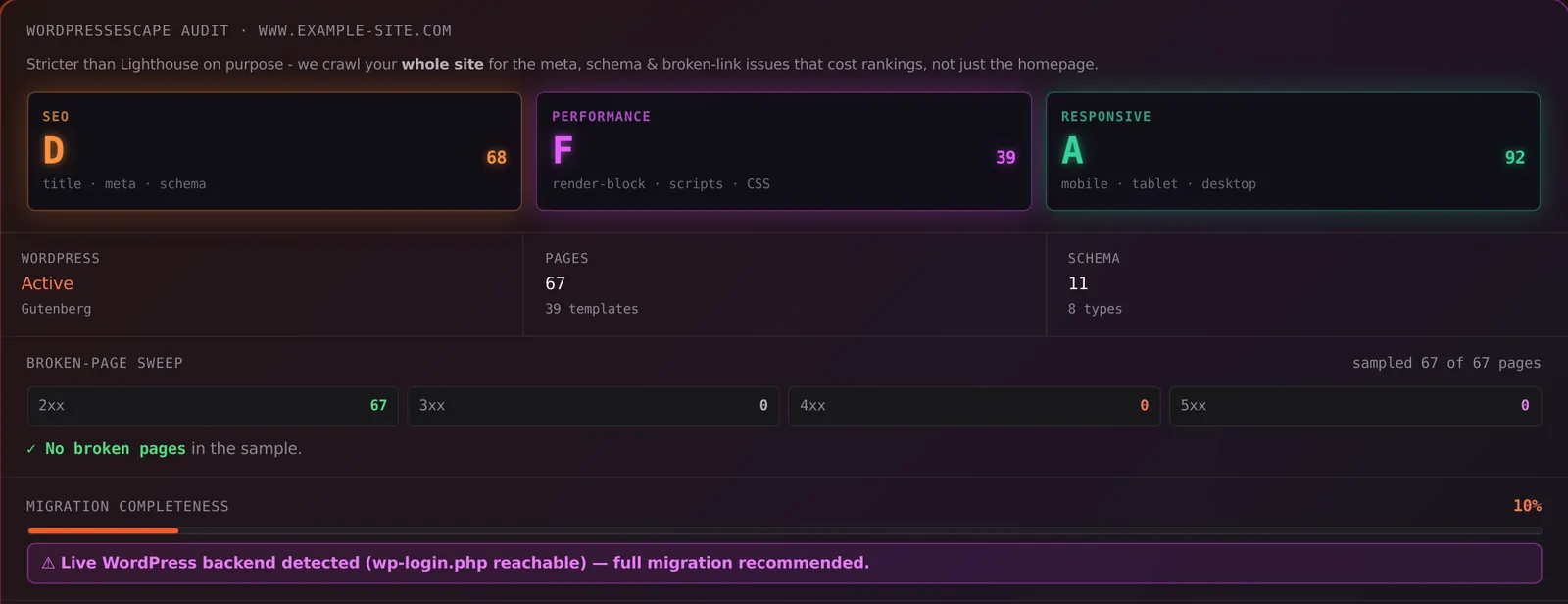
Every site is different. Run the free 60-second audit on your site - real SEO + speed grades, no login - then decide.
Scan my site free